Every morning, you open Slack. Then email. Then your calendar. Then your project tool. Then a dashboard somewhere. By the time you know what actually matters today, 45 minutes are gone.
There's a better way. In this guide, you'll build a daily command center inside Claude Cowork using Live Artifacts , one live view for today's priorities, this week's blockers, and this month's KPIs. Instead of opening ten apps, you open one.
Claude Desktop app · Any paid Claude plan · Connected apps or sample data to test with
Who This Is Useful For
This guide is for you if you recognize yourself in any of these:
- You're an operator or founder who starts every morning by checking too many apps before you know what actually matters
- You're a manager or team lead who needs one place for blockers, meetings, follow-ups, and team updates
- You're a creator or consultant who wants a lightweight command center for content, clients, pipeline, tasks, and KPIs
What You Will Build
A Claude Live Artifact that works like a daily command center. Version one gives you Today, This Week, and This Month views, plus KPI cards, quick stats, charts, and feed panels from your connected apps.
After that, you'll layer on upgrades: priority labels, dashboard skills, refresh buttons, and controls like manual override, archive, and click-to-open updates.
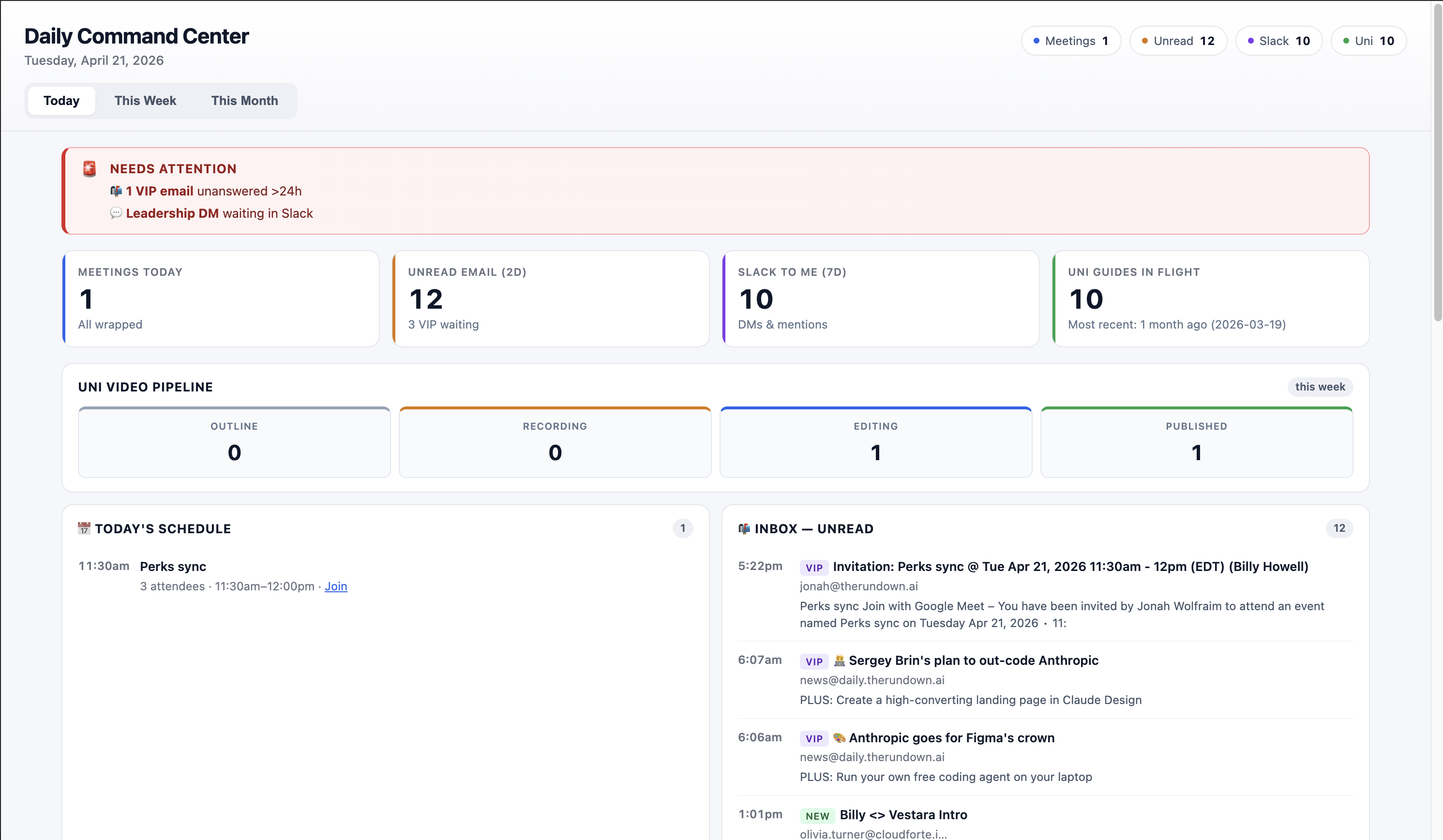
A pinned Live Artifact you open every morning instead of ten apps. Refresh it, read what changed, pick your top 3 actions, then open individual apps only when needed.
Let Claude Interview You First
Open Claude Cowork and make it interview you before it builds anything. Slowing down at the start is the most important thing you can do.
Most people skip this and jump straight to "build me a dashboard." That's how you get a pretty layout that doesn't match your actual day.
Paste this prompt to start:
Interview me about my connected apps, daily workflow, KPIs, and what counts as urgent. Then propose the modules for a daily command center before creating the artifact.
If you want Claude to go deeper, use this expanded version:
Before you build anything, interview me about my workday.

Ask me about:
- my connected apps and files
- what I check every morning
- what decisions I make daily
- the KPIs I care about
- what counts as urgent
- what updates are FYI only
- what should show up in Today, This Week, and This Month

After the interview, propose the dashboard modules before creating the artifact.
Answer with real workflow details. For example, you might say you check Slack mentions, unread Gmail, today's calendar, active Notion projects, CRM pipeline, and weekly content numbers.
Pro tip: Ask Claude to summarize its understanding before it builds. A quick "Here is what I heard" step catches bad assumptions early. If Claude asks to enable a connector you're not comfortable with, skip it , you can always add it later.
Create Version One of the Dashboard
Now tell Claude to create a v1. Keep this version simple , it should prove the structure works before you add skills, buttons, animations, or advanced settings.
Create a modular Live Artifact command center with Today, This Week, and This Month views. Include KPI cards, quick stats, charts, and app feed panels.
For a more detailed build, use this:
Create a modular Live Artifact command center with three views:

1. Today
2. This Week
3. This Month

Include:
- KPI cards
- quick stats
- charts for trends or changes
- feed panels grouped by app or workflow
- blockers and waiting-on items
- top 3 recommended actions

Keep it scan-friendly. I should understand the day in 60 seconds.
Use the interview answers to decide what belongs in each view.
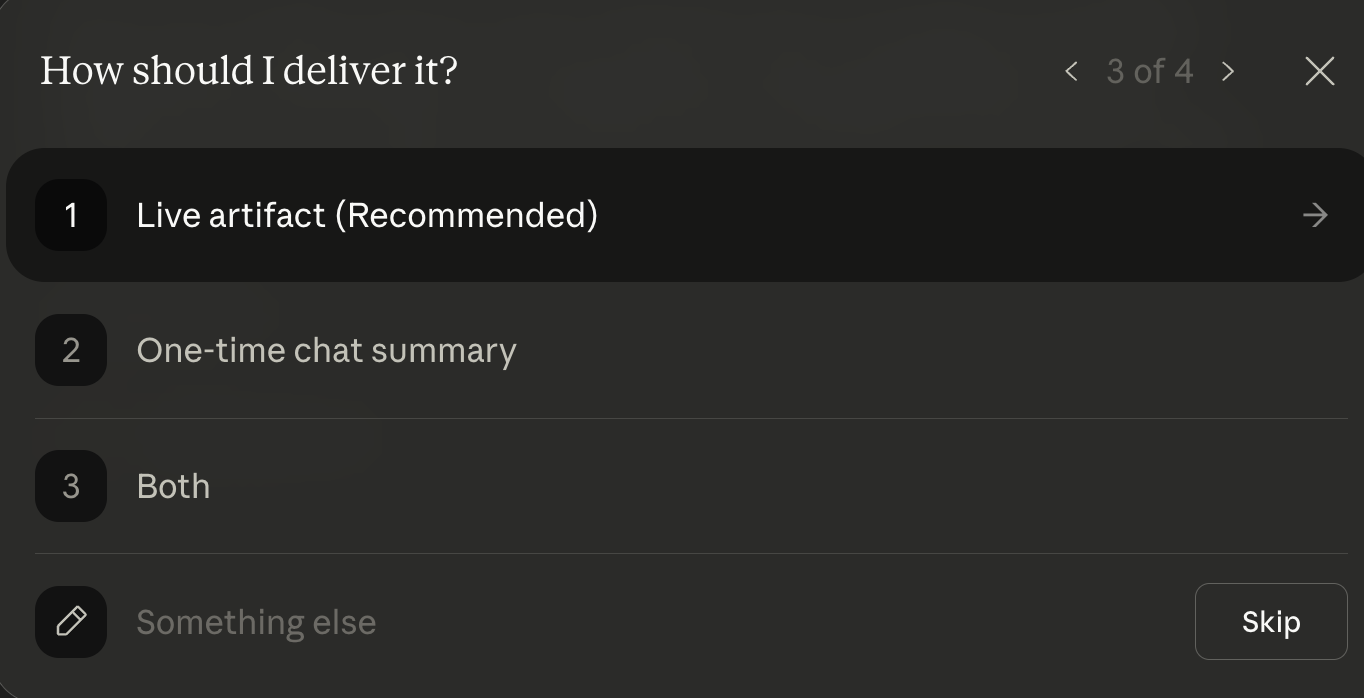
When Claude asks how you want the output delivered, choose Live artifact so the dashboard becomes something you can reopen instead of a one-time chat summary.
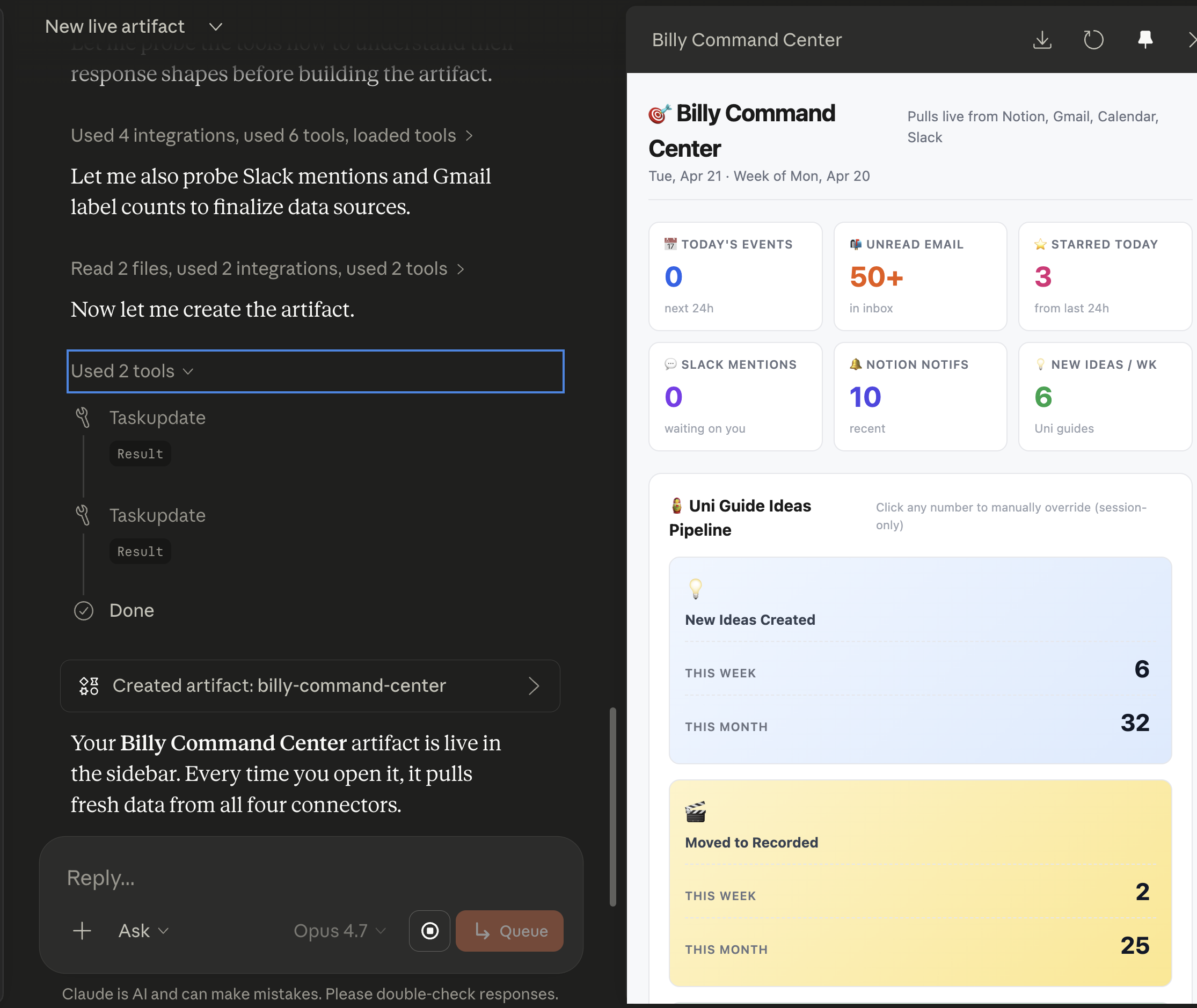
After Claude creates the artifact, review version one like a dashboard, not like an essay. Check:
- Are the top numbers actually useful?
- Are the feeds grouped by app or workflow?
- Can you understand the day in under a minute?
- Is anything private showing up that shouldn't be?
Pro tip: Every step after this is an upgrade layered on top of version one. Make sure this version is actually useful before proceeding. A dashboard you can act on beats a beautiful dashboard you ignore.
Add Priority Tracking
Once version one is useful, add priority tracking. The dashboard should rank updates, not dump another feed on you.
Add priority labels to every update: urgent, needs review, FYI, or blocked/waiting. Rank items by deadline, business impact, customer impact, and whether I am the blocker.
For more control, add source and confidence rules:
Add priority labels to every update:
- urgent
- needs review
- FYI
- blocked/waiting

Rank items by:
- deadline
- business impact
- customer impact
- whether I am the blocker
- whether a decision is needed today

If you are not sure, mark the item "review manually."
Do not invent status. Cite the source app or source item for each recommendation.
"This is what turns the artifact from 'nice dashboard' into something you can act on. Slack mentions, unread emails, upcoming meetings, overdue tasks, and project updates should not all compete equally."
Pro tip: Keep the labels visible. A fast dashboard tells you what needs action before you read the details.
Add Dashboard Skills
Now add dashboard skills. This lets you take action without leaving the dashboard.
Add skills to this dashboard: Plan my day, Show blockers, Draft replies, Prep meetings, and Review KPIs. Each skill should be triggered via a button on the dashboard and should return a short next-step list.
You can also ask Claude to build out specific skills:
Add these dashboard skills:

1. Summarize email
Read the latest relevant email updates, summarize the important ones, flag anything urgent, and place the results in the Today view.

2. Summarize Slack mentions
Read new Slack mentions and DMs, group them by project or urgency, and add anything actionable to the Today view.

3. Prep meetings
Look at today's calendar, find related docs or recent messages, and create a short prep brief for each important meeting.

4. Review KPIs
Compare today's numbers to this week and this month. Flag anything that changed meaningfully.

5. Draft replies
Create short draft replies for urgent messages, but do not send anything without review.
The point is not to add every possible button. The point is to turn the command center into the place where the next action starts.
Pro tip: Once the artifact opens, click the pin button to keep it in your Claude sidebar. You don't want to search through old chats every morning.
Add Refresh and Control Buttons
This is the part that makes the artifact feel like a real command center. Once version one works and the skills are useful, add controls that make the dashboard easier to run every day.
Start with a daily refresh button:
Add a Daily refresh button to this command center.

When I click it, update the dashboard with current information from connected apps and files.

The refresh should show:
- what changed since the last version
- what got more urgent
- what is blocked
- what improved
- the top 3 actions I should take next

Preserve the dashboard structure. Update the state.
Then add practical controls:
Add these dashboard controls:

- Settings panel for update frequency
- Manual override for any incorrect status or priority
- Archive button for updates I have handled
- Click-to-open links for every source update
- Dark mode toggle
- Simple animations only where they make status changes easier to notice
If Claude can't fully wire every button to every connector in your setup, keep the control anyway and have it generate the right prompt. The habit still works: open the pinned artifact, refresh the state, review what changed, and take action.
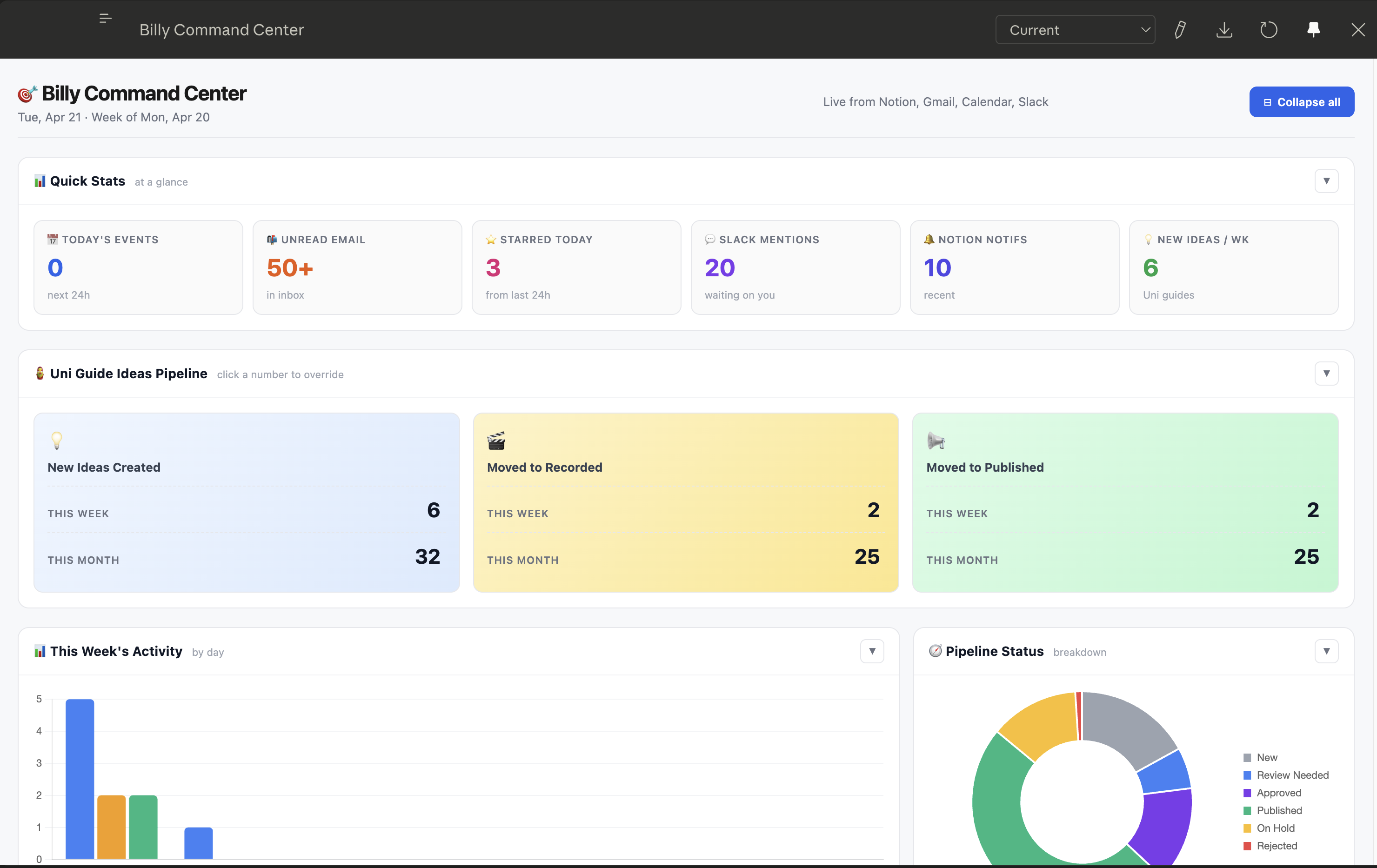
Pro tip: Ask for "since yesterday" and "since last week" summaries. Daily changes tell you what to do now. Weekly changes tell you whether the system is improving or drifting.
Going Further
Once the five steps are done and the command center is part of your morning, here's what to layer on next:
- Add dark mode and light polish. Useful every day is worth making comfortable to look at. Keep polish secondary to usefulness.
- Add a settings panel. Let yourself change update frequency, visible sources, KPI definitions, and priority rules without rebuilding the artifact.
- Add manual override and archive. Claude won't classify everything perfectly. A manual override and archive button keeps the dashboard useful when a status is wrong or an item is done.
- Make updates clickable. Ask Claude to include source links so you can click from the dashboard into the original Slack thread, email, doc, task, or calendar event.
- Use it as a morning ritual. Open the pinned artifact, refresh the dashboard, read the change report, pick the top 3 actions, and only then open the individual apps.
"The goal isn't a perfect dashboard. It's getting to your top 3 actions in under 60 seconds , every morning, without opening ten apps first."